"Where is my order?" is the most common message any online store gets. It arrives on WhatsApp, Instagram, email and the phone, often more than once for the same parcel.
Most of the time the answer already exists. The courier knows exactly where the parcel is. The problem is that your customer does not know where to look, or they are sent to a courier website that looks nothing like your store and asks for a number they never saved.
A branded tracking page fixes that. This guide explains what it is, why it matters, and how to add one to Shopify in a few minutes.
What a branded tracking page is
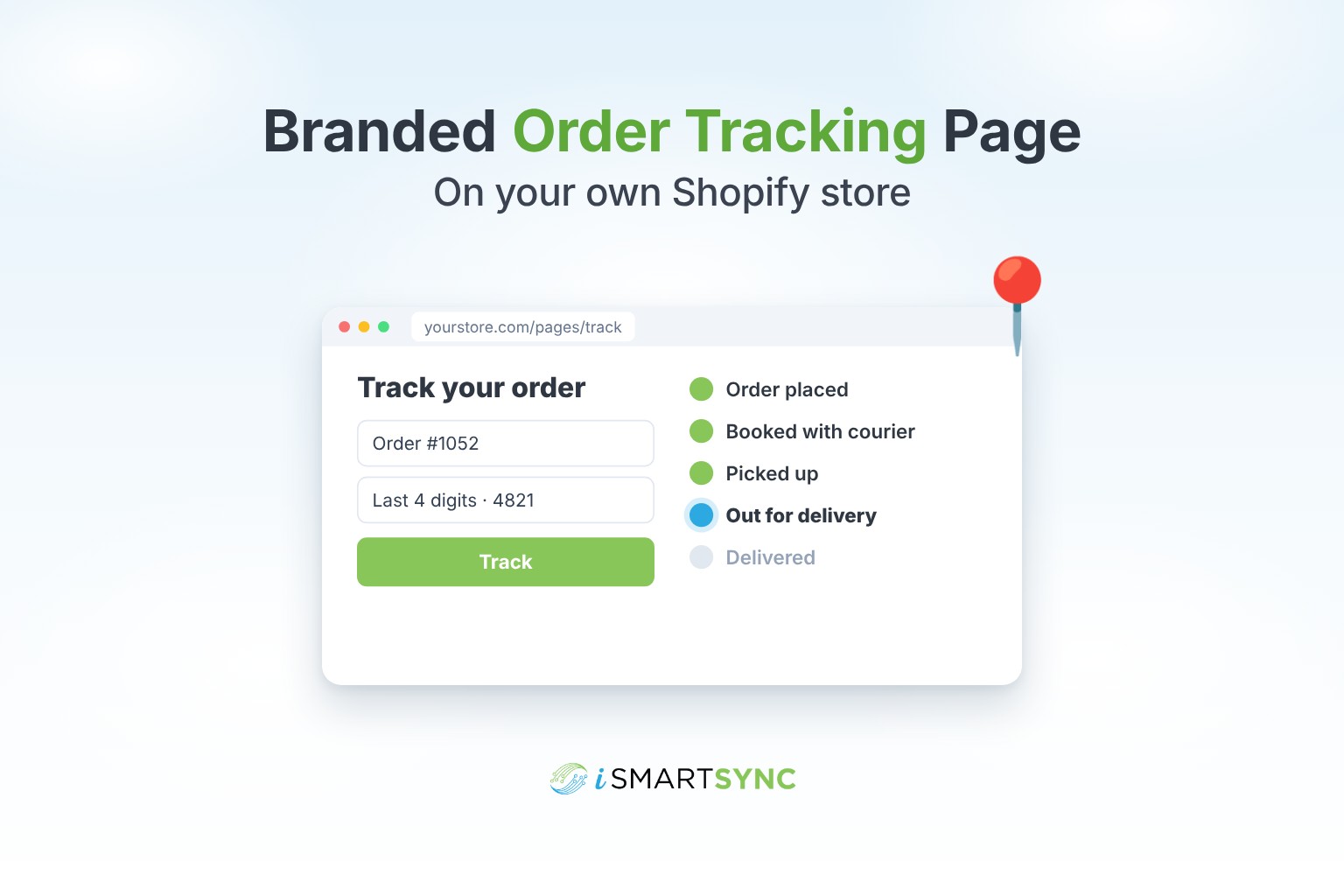
It is a page on your own store, for example yourstore.com/pages/track, where a customer types their tracking number or order number and sees where their parcel is.
It looks like the rest of your store: your colours, your fonts, your header and footer. The customer never leaves your website, and the page works the same way whichever courier carried the parcel.
Why it is worth having
Fewer "where is my order" messages. When customers can check for themselves, many of them will. Your team spends less time copying tracking numbers into chats.
Trust. A parcel page on your own domain feels safer than a link to a site the customer does not recognise. That matters most on cash on delivery orders, where the customer has not paid yet and can still refuse the parcel.
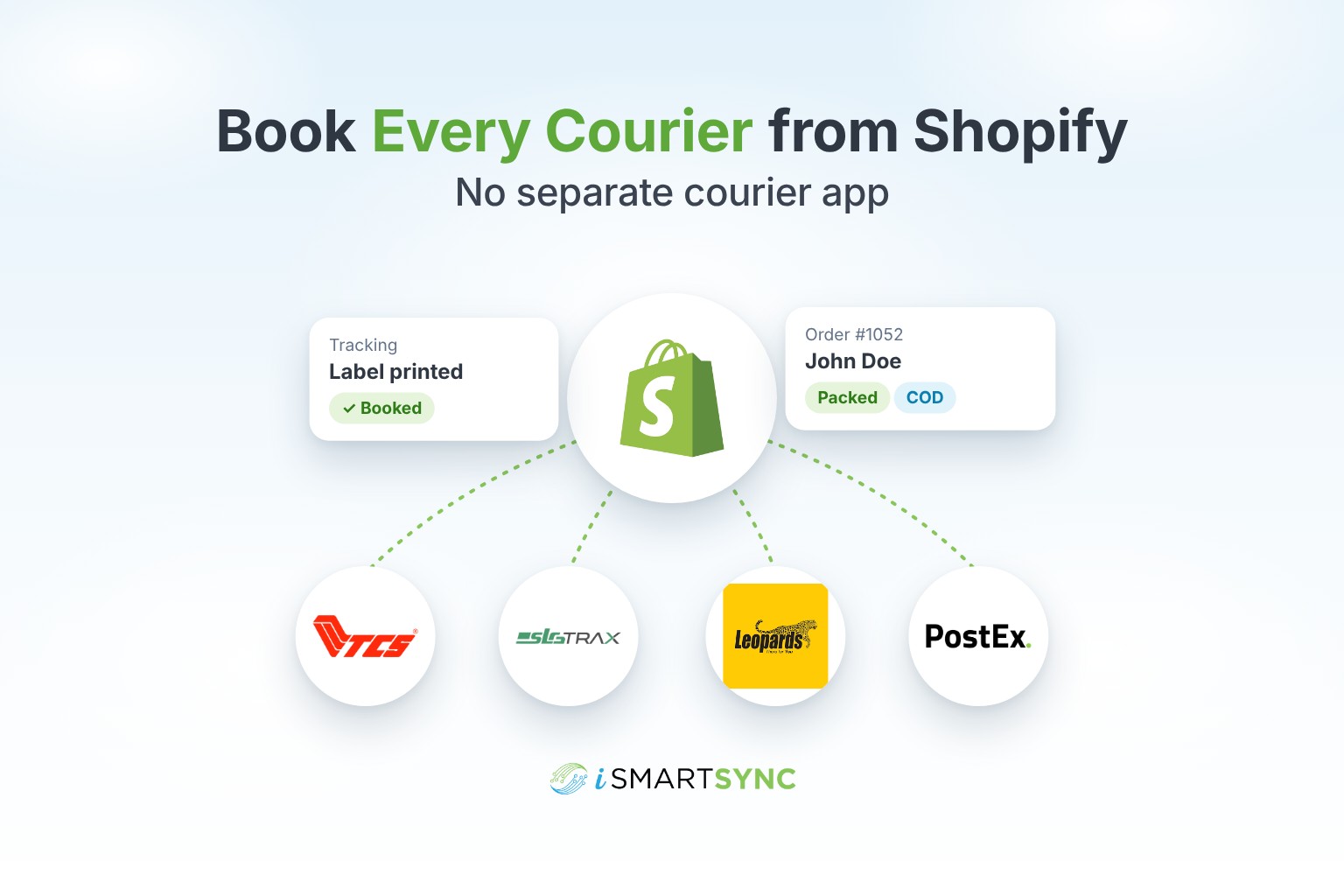
One page for every courier. If you ship with two or three couriers, customers should not have to know which one has their order. One page, one search box.
More visits to your store. Every tracking check is a visit to your website, not to the courier's. A customer waiting for a parcel is the easiest customer to sell to again.
What a good tracking page needs
Before you choose a tool, check that it covers these basics.
- Search by tracking number. The simplest case.
- Search by order number too. Many customers remember "order 1052" but not a long tracking code. To protect privacy, the page should also ask for something only the buyer knows, such as the last four digits of their phone number.
- Plain status words. "Out for delivery" is better than a courier's internal code.
- Your store's look. It should match your theme without you hiring a developer.
- Works on phones. Most of your customers will open it on a phone, usually from a WhatsApp link.
How to add one with iSmartSync
If you already book couriers inside iSmartSync, the tracking page is ready to use. Every parcel you book there already has its tracking number saved against the order.
Step 1. Create a page in Shopify. In your Shopify admin, go to Online Store, then Pages, and add a page called "Track your order".
Step 2. Add a Custom Liquid section. Open the page in the theme editor and add a Custom Liquid section.
Step 3. Paste two lines. iSmartSync gives you two short lines of code. Paste them into the section and save.
That is all. The page picks up your theme's colours and font on its own, so it looks like part of your store from the first day.
We chose this approach on purpose. Many stores use custom themes and a mix of apps, and a simple Custom Liquid section works in every theme without breaking anything else.
What your customer sees
John Doe ordered a shirt from your store. He gets a WhatsApp message with his order number. He opens your tracking page, types the order number and the last four digits of his phone, and sees that his parcel is out for delivery today. He does not need to message you at all.
If he has the tracking number instead, he can paste that on its own.
Where to link the page
A tracking page only helps if customers can find it. Put the link in these places:
- Your store's main menu or footer, as "Track order".
- Your order confirmation and shipping emails in Shopify.
- Your WhatsApp quick replies, so your team can send it in one tap.
- Your Instagram bio or highlights, if you sell there.
Common questions
Does it work for orders booked outside iSmartSync? The page looks up parcels that were booked through iSmartSync, because that is where the tracking number is saved.
Can customers see other people's orders? No. Searching by order number also needs the last four digits of the phone number on that order.
Do I need a developer? No. If you can add a section in the Shopify theme editor, you can add the tracking page.
The short version
Customers want to know where their parcel is without asking you. Give them a page on your own store that works for every courier, looks like your brand, and takes two lines to set up. Your team gets fewer messages, and your customers get one more reason to trust you.
See how booking and tracking work together on the courier booking page, or start your 7-day free trial.