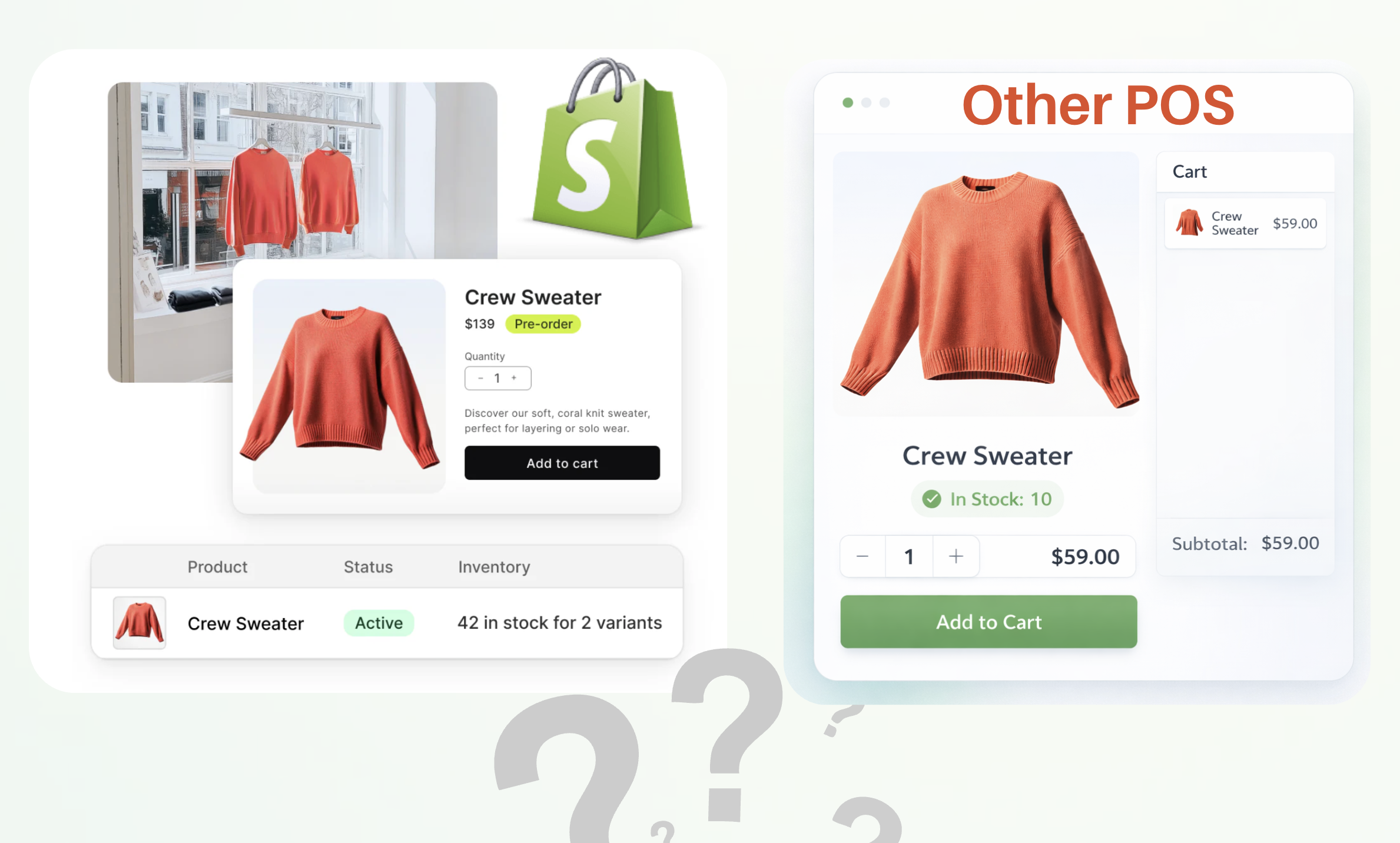
Your shop POS says you have 6 of a shirt. Shopify says 4. If your point of sale is a separate system connected to Shopify, rather than Shopify's own POS app, a Shopify POS inventory mismatch like this can come from several places, and guessing the cause usually makes it worse.
So don't correct anything yet. First check that you are comparing the same variant, at the same location, in the same stock state, at the same moment. This guide walks through those checks, then shows how to trace one item's history, find the cause, fix the right record and confirm the fix holds.
Are You Comparing the Same Inventory Record?
Match variant, location and timestamp
Take a cotton shirt sold in two sizes, S and M, at two branches. Shopify may show a product total of 10, while your POS screen shows Branch A, size M: 6. Those are different numbers by design. Compare one variant (size M), at one place, at one time. Also confirm which Shopify location your branch is connected to. If two branches share one Shopify location, Shopify only sees their combined stock. It helps to understand branch-level stock visibility before you compare.
Distinguish available, on-hand and committed stock
Shopify separates stock you physically hold (on hand) from stock already promised to unfulfilled orders (committed). Available is what can still be sold. Illustrative example: Branch A holds 6 shirts, 2 are committed to online orders waiting to be packed, so Shopify shows 4 available. Nothing is wrong, and nothing has left the shop yet. Check which state each screen shows before calling it a mismatch.
Which System Is Allowed to Change Inventory?
Identify the owner and update direction
Write down every system that changes stock and which way each one updates: the POS, Shopify admin, a warehouse app, a marketplace app or a stock-count tool. Then note which one is the source of truth for each field. Shopify does not have to be the master for everything. In many shops the POS owns branch stock and Shopify owns online orders. What matters is that each quantity has one clear owner.
Check other apps and manual adjustments
When two systems write the same quantity, you get confusing records. A staff member edits stock in Shopify admin, the POS sends its own number a minute later, and one change silently overwrites the other. Before disconnecting anything, open Shopify's inventory history for the variant and your POS stock log, and look for adjustments made outside your normal flow.
What Happened to One Mismatched Item?
Rebuild the item's stock-changing events
Pick one variant and list every event that changed it, with time and reference: the opening count, shop sales, online orders, cancellations, fulfillments, transfers and returns. Online orders matter most, because you need to know which branch actually packed and sent each one. Learn how to trace the fulfillment branch if your team picks branches by hand.
Compare expected and recorded outcomes
Put the events in a short ledger. Illustrative example, size M shirt, Branch A:
| Time | Event | Expected Branch A | Recorded in POS | Recorded in Shopify |
|---|---|---|---|---|
| 09:00 | Opening count | 8 | 8 | 8 |
| 11:20 | Shop sale, receipt 4471 | 7 | 7 | 7 |
| 14:05 | Online order 1052 packed at Branch A | 6 | 6 | 6 |
| 16:40 | Return of order 1031 received at Branch B | 6 | 6 | 7 |
The last row shows the problem: a return received at Branch B was added back to Branch A's location in Shopify. It isn't a missing sale or a duplicate. It's a wrong-location change.
Which Cause Fits the Evidence?
| Symptom | Check first | Likely cause |
|---|---|---|
| One size is always off, others are fine | Variant link between systems | Unlinked or duplicated variant |
| Stock moves at the wrong branch | Branch-to-location mapping | Wrong location mapping |
| Numbers match later in the day | Time of last confirmed update | Delay or retry still pending |
| Off after returns or exchanges | How returns are restocked | Return restocked to the wrong place |
| Random jumps with no POS event | Shopify inventory history | Another app or a manual edit |
Check product and branch mapping
If only one variant drifts, check that it is linked to the same item in both systems. A re-created variant in Shopify can leave the old one linked in the POS. If changes land at the wrong branch every time, the branch-to-location mapping is the suspect, not the sync.
Check delays, failures and unsupported events
Compare when the last update was confirmed with when the event happened. A gap means a delay or a failed update waiting for a retry. Then check event coverage: some integrations update sales but not returns, transfers or cancellations. An event your integration doesn't handle will always leave a gap, however often you resync.
How Do You Reconcile Without Creating Another Error?
Confirm the physical count and correction method
Count the shelf for that variant at that branch. Save a copy of both systems' records before you change anything. Then correct the authoritative record using the method your integration supports, not by typing numbers into both systems.
Test the next stock event
After the correction, run one small, controlled transaction, such as a single sale of the corrected variant, and check that both the quantity and the location update as expected. Avoid relinking everything or bulk-overwriting quantities just to make totals match. That hides the cause, and the gap comes back.
Should You Repair the Integration or Evaluate Another POS?
Escalate a reproducible issue
If the cause is in the integration, give your vendor evidence they can act on: the variant, the branch and Shopify location, order or receipt numbers, timestamps, the expected result, the actual result and any logs. A reproducible case gets fixed faster than "stock is wrong".
Compare alternatives only if required behavior is missing
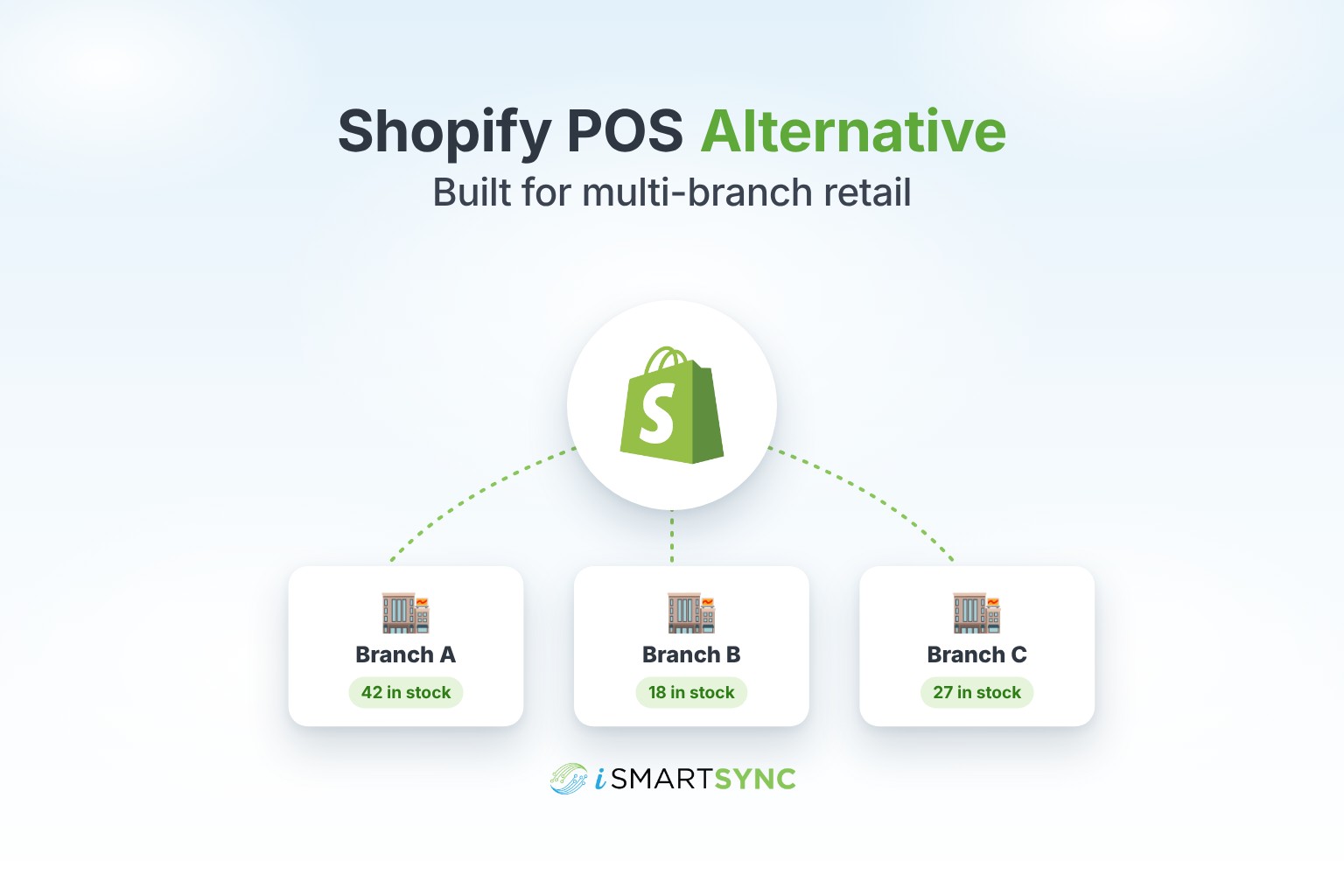
Replace your POS only if it can't handle an event you depend on, such as branch-level stock under one Shopify location or returns restocked to the receiving branch. In the iSmartSync Shopify inventory workflow, each branch keeps its own stock. A shop sale deducts the selling branch first and then updates the Shopify location, and an online order deducts stock from the branch that packs it. If someone assigns too much stock to branches by mistake, you correct Shopify to the true number first, then use ShopStock Sync to reduce the branch quantity without changing Shopify again.
Frequently Asked Questions
Why is my shop stock different from Shopify?
Usually because the two screens show different things: a variant versus a product total, one branch versus a shared location, or on-hand versus available stock. If those match, check for a delayed update, an unsupported event or a manual edit.
Which system should I correct first?
Correct the system that owns that quantity, using the method your integration supports. Count the shelf first, save both records, and let the sync carry the corrected number to the other system.
How can I stop a mismatch from returning?
Find the event that caused it and fix that step, whether it's a mapping, a return flow or a second app writing stock. Then test one transaction. Overwriting quantities over and over only hides the cause.
Find the cause before you fix the number
You can now check whether a mismatch is real, rebuild one variant's history and match the gap to a cause. Fixing that step, rather than the total, is what stops the problem coming back.
If you'd like a second pair of eyes, pick one mismatched item and its recent sales, orders and returns, and get in touch with the iSmartSync team. We'll walk through its event history with you and show how the same events would run in iSmartSync.