





If someone in your shop updates Shopify by hand after every sale, or your website keeps selling items the shop has already sold, your store and your Shopify website aren't connected. You can connect them in two main ways: add a supported integration to the POS you already use, or switch to a POS that connects to Shopify directly.
This guide helps you connect your physical store to Shopify in three steps: decide what needs to connect, pick the route that fits your shop, and test that a sale really updates the right stock before you rely on it.
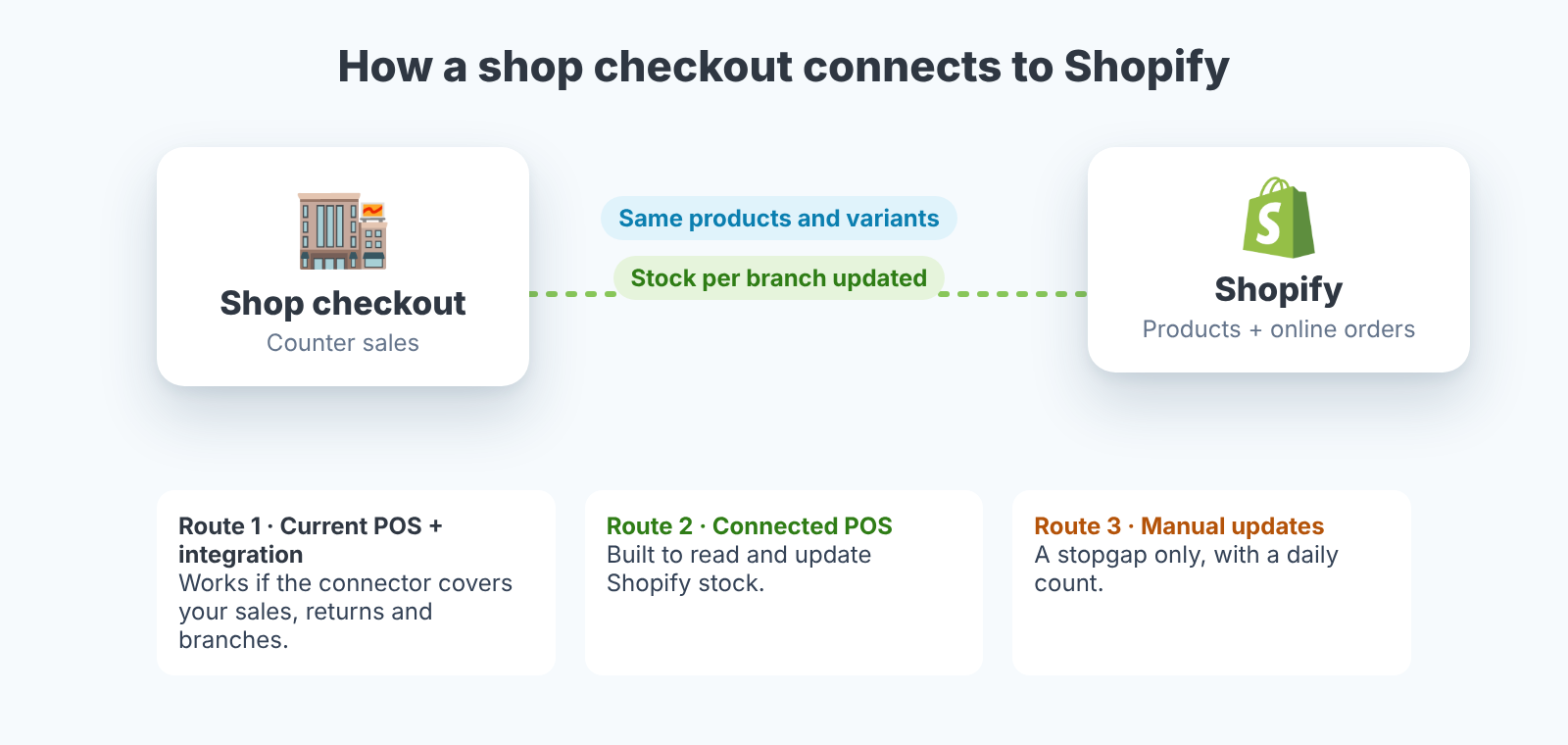
What Does Connecting Your Shop to Shopify Actually Mean?
Connect the checkout to the online catalog
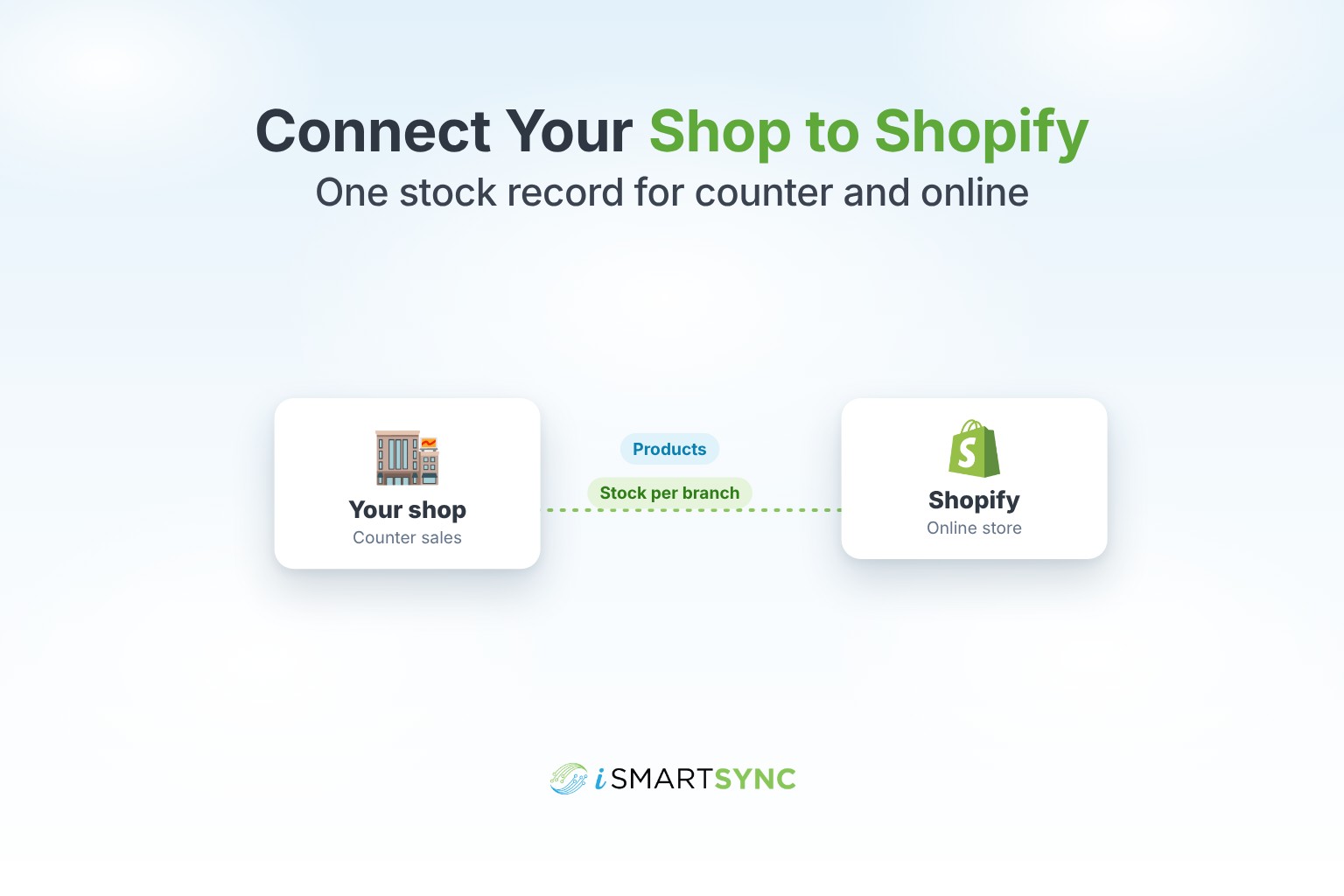
There are three parts: the checkout in your shop, your Shopify website, and the connection between them. The connection makes sure both sides sell the same products and variants and share one view of stock. Taking card payments is a separate question. Your POS might use its own card terminal or your bank's, whichever way the catalog and stock are connected.
Keep the correct stock record updated
Illustrative example: you have 10 black shirts in size M. A customer buys one at the counter. Your POS should take one off that variant, at your shop's location, and Shopify should then show 9, so the website can't sell a shirt that's no longer there. How quickly Shopify updates depends on the setup, so check it yourself rather than relying on a promise.
Which Connection Route Fits Your Existing Shop?
Keep your current POS and add a supported integration
If your current POS works well and your staff know it, keeping it can make sense. Check that the connector handles the events that change stock, such as sales, returns, transfers and cancellations, and doesn't just import products. A connector that only copies your catalog leaves stock out of step from day one.
Choose a connected POS or use manual updates temporarily
If your POS can't connect, or the connector misses events you rely on, a POS built to connect to Shopify is the cleaner route. Updating Shopify by hand works only as a stopgap, with a daily count to catch mistakes.
| Route | Best when | Watch out for |
|---|---|---|
| Current POS + connector | Your POS works well and a supported connector covers your events | Events the connector doesn't handle |
| Connected POS | Your POS can't connect, or you run several branches | Moving products and training staff |
| Manual updates | Short-term only | Mistakes, overselling and daily rework |
What Should You Prepare Before Connecting?
Clean products, variants and identifiers
A product such as "Cotton shirt" has variants: each size and colour. Every variant needs its own SKU or barcode so both systems match the right item. Remove accidental duplicates, and export a backup of your products before you change anything. If you run several shops, also plan how to map Shopify inventory across branches.
Count stock and map branches
Count what's physically in each shop and assign it to the right Shopify location. Decide which system owns quantities and which owns product details such as prices. Never load the same 5 shirts into two places. If both your POS and Shopify each think they have 5, you'll sell 10.
How Do You Connect and Verify the Sales Flow?
Authorize the supported connection and import a small sample
Install the integration the vendor supports and give it only the Shopify access it asks for. Confirm which way each kind of data flows. Then import or link a small sample of products first, check that the variants and quantities match, and only then bring in the rest.
Test both a counter sale and an online order
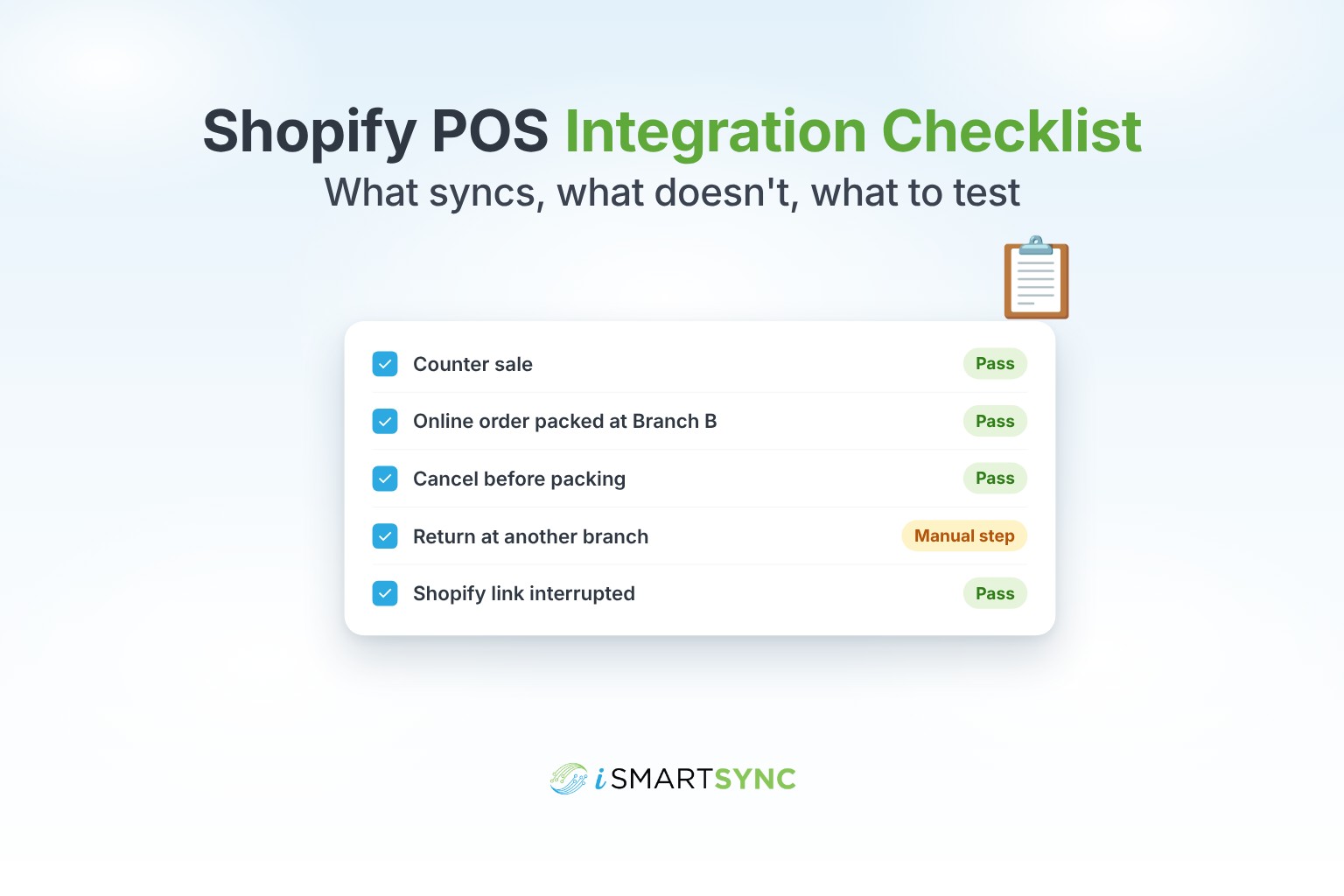
Follow one variant through both channels. Note the starting quantity, sell one at the counter, then place one online order. Record the stock after each step, and remember that an online order may reserve stock before it's packed. Our Shopify POS integration checklist lists every event worth testing.
What Costs and Responsibilities Should You Compare?
Compare the complete operating cost
Add up everything: the POS subscription, any connector fee, equipment, setup help and costs that grow with you, such as extra branches, counters or orders. Compare totals for the same setup, not headline prices. The iSmartSync plans and pricing page lists what each plan includes.
Identify who fixes connection problems
Decide in advance who you call for each kind of problem: products, stock, payments and equipment. With a POS and a separate connector, there are two vendors, and each may point at the other. A single vendor that owns both the POS and the Shopify connection makes support simpler.
Where Does iSmartSync Fit in This Setup?
Match the demonstrated workflow to your requirements
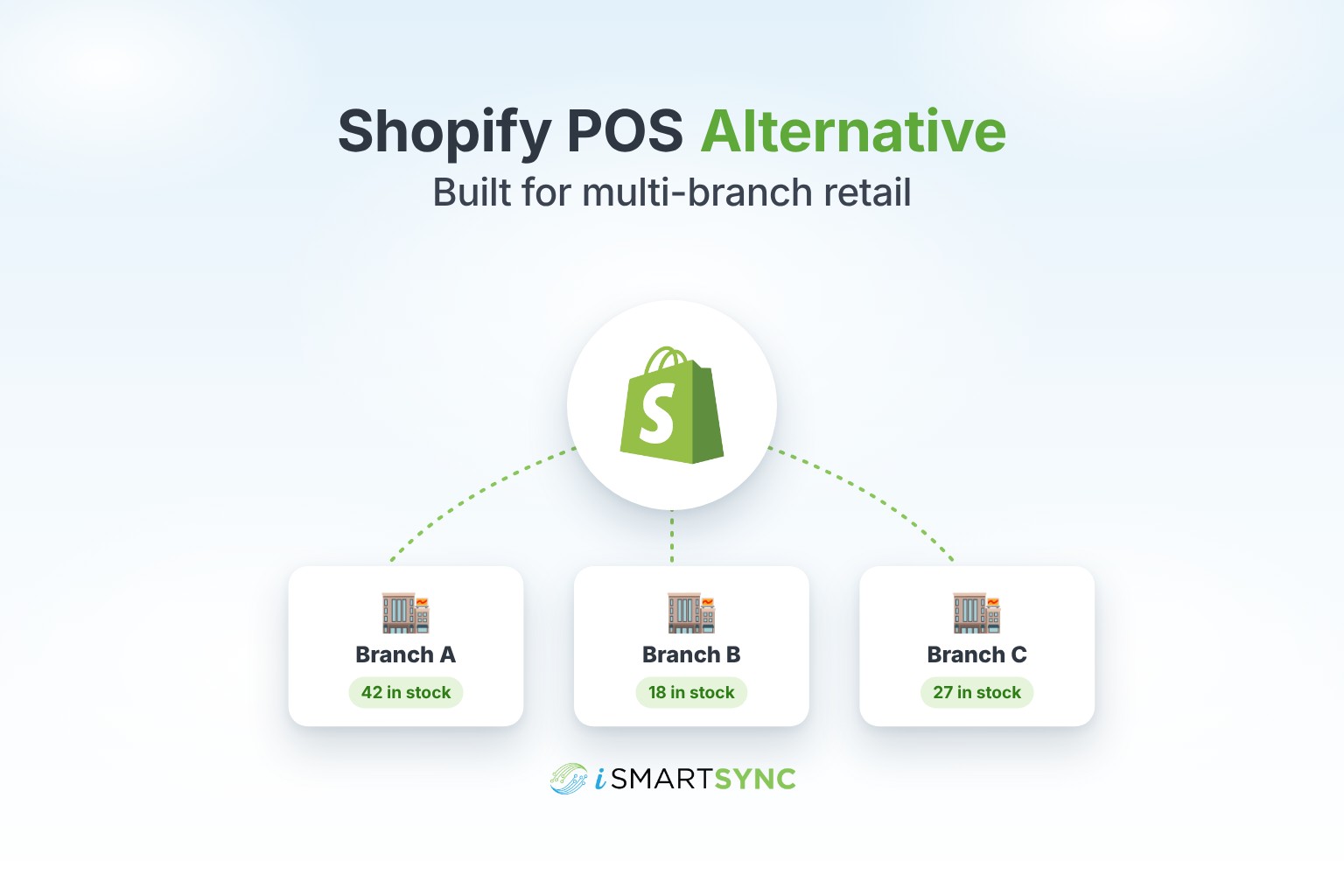
The iSmartSync Shopify integrated POS is a cloud-based POS that connects directly to Shopify. Products and variants are imported from Shopify. When the black size M shirt sells at your counter, iSmartSync takes it off that branch first, then updates the branch's Shopify location. If you run several branches, each keeps its own stock.
Decide what to test before committing
Before choosing, list what you have now:
- your current POS;
- how many branches and counters you run;
- your equipment;
- the stock events you rely on;
- who will support you.
Then ask for a demo that runs those events with your own products.
Frequently Asked Questions
Can I connect my existing shop to Shopify?
Yes. Either add a supported integration to your current POS, or switch to a POS that connects to Shopify. Either way, you'll need to match your products and map each shop to a Shopify location.
Do I need Shopify POS to sell in-store?
No. Shopify's own POS app is one option. A separate POS that connects to Shopify is another, and it may suit you better if you need features like several branches under one location.
How do online and store sales share stock?
Each sale updates the same variant at the right location, either because both channels use one stock record or because the POS sends each change to Shopify. Check which applies to your setup.
Connect, then test
You now know what needs to connect, which route suits your shop, and how to check that a counter sale and an online order both update the right stock.
If a connected POS sounds like the right route, book a 30-minute demo. Bring your current POS, your branch list and a few sample products, and we'll show how they'd run in iSmartSync.