





"Integrates with Shopify" tells you very little. It doesn't say which records move, in which direction, when, or what happens with returns, cancellations and transfers. Two POS systems that both claim it can behave completely differently on the same order.
This Shopify POS integration checklist turns the claim into something you can test. You'll list what should sync, write it into a simple matrix, and run a handful of real events with pass or fail results before you approve the launch. You can download the acceptance sheet and fill it in as you go.
What Information Should Your POS and Shopify Share?
Specify products, variants, prices and customers
List each record type separately: products, variants, prices, costs, barcodes and customers. For each one, decide which system owns it and which way updates flow. Don't assume everything syncs both ways. Many setups import products from Shopify into the POS and never send product edits back. That's fine, as long as you know it.
Specify quantities, locations, orders and returns
Stock is different from catalog data, because it changes with events: shop sales, online orders, cancellations, transfers, returns and manual adjustments. List each event separately, with the branch and Shopify location it should affect. Payments and refunds need their own line too, since a refund doesn't move stock by itself.
How Do You Build a Written Sync Matrix?
Define direction, trigger and expected timing
Make a table with these columns. Field or event is what changes. Owner is the system whose number wins. Source and destination are where it starts and where it ends up. Trigger is the action that starts the update. Expected timing is how soon it should show. Exclusions are what isn't covered.
| Field or event | Owner | Source → destination | Trigger | Expected timing | Exclusions |
|---|---|---|---|---|---|
| Variant price | Shopify | Shopify → POS | Product import | When imported | Price edits made in the POS |
| Counter sale stock | POS | POS → Shopify | Sale completed | Right after the sale | Sales made without internet |
| Online order stock | POS (branch) | Shopify → POS | Order packed | When packed | Orders packed outside the POS |
Illustrative rows. Fill in your own from the vendor's documentation and your tests.
Assign the evidence and support owner
Add two more columns. Status is documented, demonstrated or unverified. Support owner is who you call when it breaks. Only mark a row "demonstrated" after you've seen it work. A promise in a sales call is "unverified" until then.
How Should You Test Normal Store and Online Sales?
Set a known baseline for one variant
Pick one test variant, such as a shirt in size M. Record its physical count, its available and committed quantities in Shopify, which branch it's at, which Shopify location that branch maps to, and the time. Use a test product, or agree a short pilot window with your vendor, so real customers aren't affected.
Run one counter sale and one online order
Sell one at the counter and record the branch and Shopify quantities. Then place one online order and record the quantities after the order arrives, after it's packed, and after it's fulfilled. Checking each stage separately stops you mistaking a normal reservation for a double deduction.
Which Exceptions Must You Test Before Launch?
Test cancellation, partial fulfillment and manual adjustment
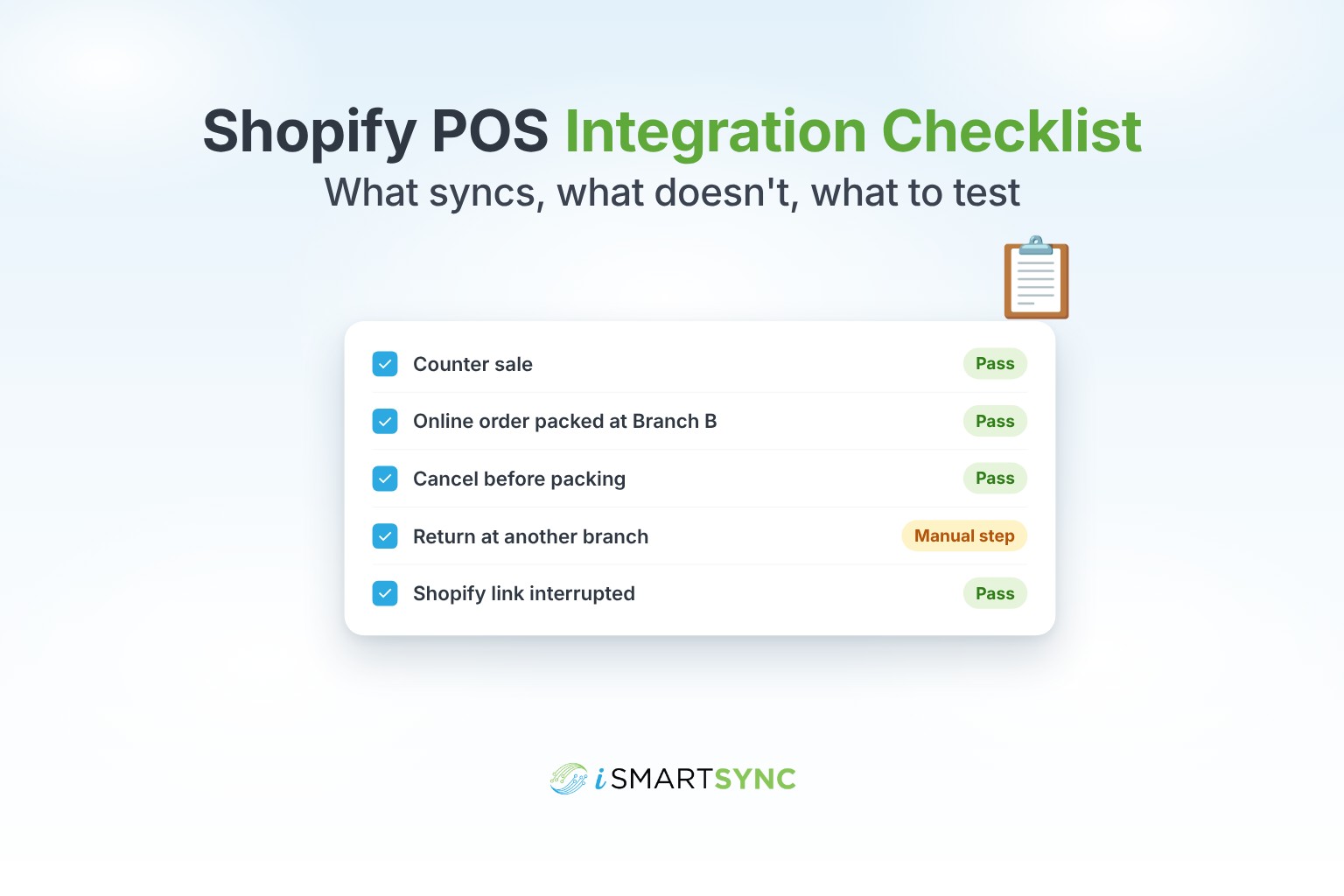
Cancel an order before packing. Fulfill only part of a two-item order. Make one manual stock adjustment and one transfer between branches. For each, write the expected quantity and order status before you start, then compare.
Test cross-branch returns and variant exchanges
Return an online order at a different branch from the one that packed it, and exchange a size at the counter. Record the receiving branch, the item's condition, the refund and the replacement. Mark every manual step, and any case the system doesn't support. Our guide on handling returns without restocking the wrong branch covers what each step should produce.
What Should You Expect When the Connection Fails?
Differentiate internet loss from integration interruption
Decide which failure you're testing: the shop losing internet, the POS service being unreachable, or the POS working while its link to Shopify fails. A cloud POS generally can't take sales without internet, so don't assume checkout continues.
Verify current recovery and support behavior
With your vendor, interrupt the Shopify link on purpose. Check whether the POS shows that an update failed, whether the sale was kept, how the update is retried, and what the quantities are afterwards. Record only what you saw.
When Is the Integration Ready to Go Live?
Use explicit pass or fail launch criteria
Go live when every required row in your sheet passes: correct quantity, correct location and correct order status for each event, including the exceptions you rely on. Name an owner for each workflow, train them, and write down any limit you've accepted.
Apply the checklist to an iSmartSync demonstration
Run the same sheet against iSmartSync's Shopify integrated POS in a demo. Mark what passes, what needs a manual step and what isn't covered. Approve only the workflows you need that actually pass.
Frequently Asked Questions
What syncs between a POS and Shopify?
It depends on the POS. Check products, variants, prices, customers, stock by location, online orders, fulfillment and returns one by one, along with the direction and trigger for each.
How long should integration testing take?
Long enough to run every required event once with a known starting quantity. For one shop, that's usually a focused session. Add time for each branch and exception you rely on.
What if a test fails?
Record the event, the expected and actual result, and the timestamps, then send them to your vendor. Don't launch the failing workflow until it passes or you've accepted a documented workaround.
Approve the launch on evidence
You now have a way to turn "integrates with Shopify" into a list of events with expected results, run them, and decide on facts.
If you'd like to run this checklist against iSmartSync, get in touch with the iSmartSync team. Bring your completed sync matrix and the exceptions you rely on, and we'll go through them in a demo using your own products.