





It's 9 pm. The shop is closed, and someone is still fixing Shopify stock by hand because the counter and the website don't agree again.
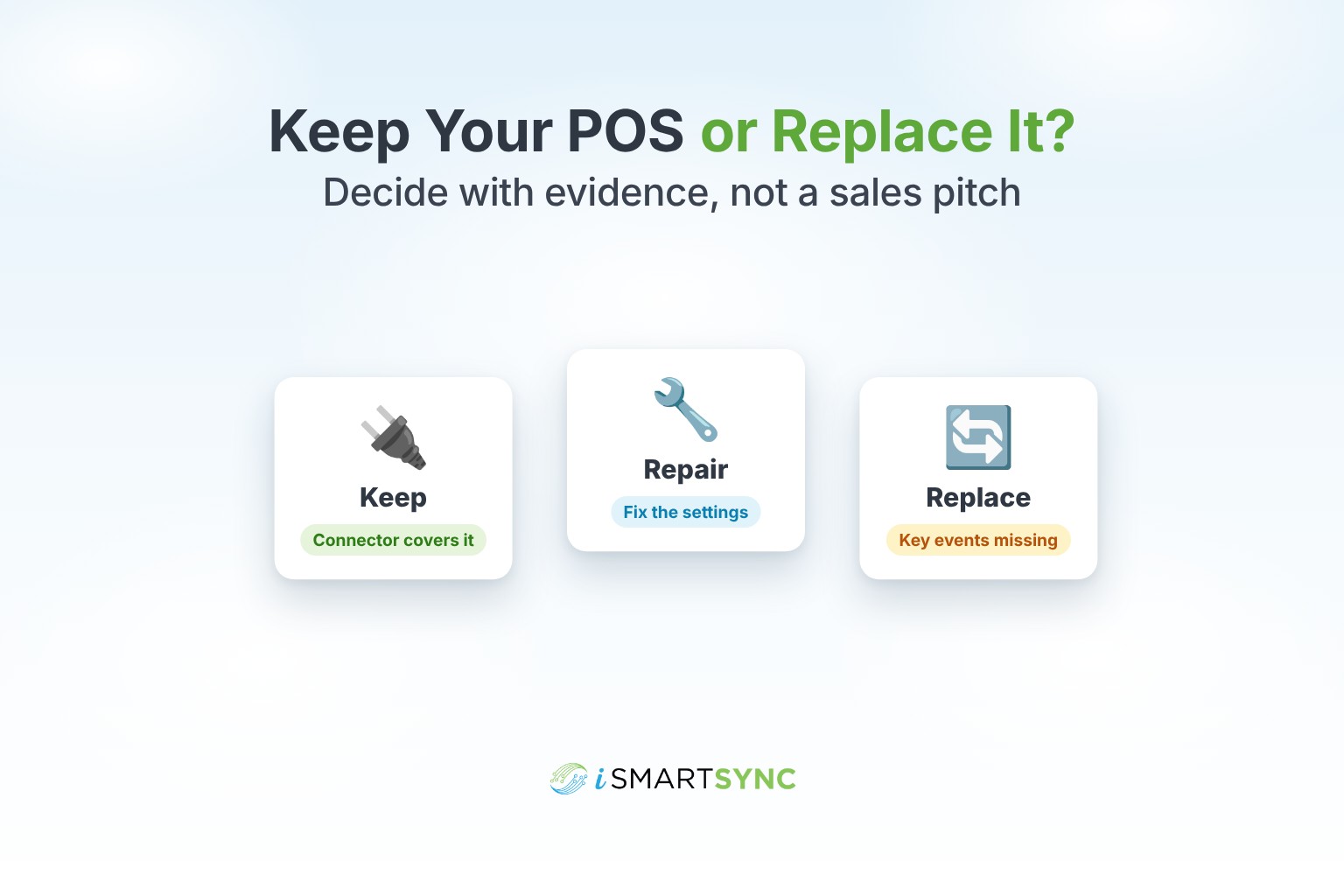
Do you need a new POS? Not always. If your current POS already updates Shopify stock after every sale, shows your online orders and puts stock back on returns, keep it. Switch only when something you need is missing and can't be fixed, or when the hours you lose every week cost more than moving.
Here is how to tell which one you are.
Three quick checks on your current POS
Do these with one real product. It takes ten minutes.
1. Sell one at the counter. Open Shopify straight after. Did the stock go down by one, at the right location? If it only changes hours later, or not at all, write that down.
2. Return it. Did the stock go back up in both places? Many setups handle sales but forget returns.
3. Ask who fixes it. When the two numbers don't match, who do you call? If the answer is "nobody" or "we fix it ourselves on Sunday", that is your answer too.
All three fine? Keep your POS. A system your staff already know is worth a lot.
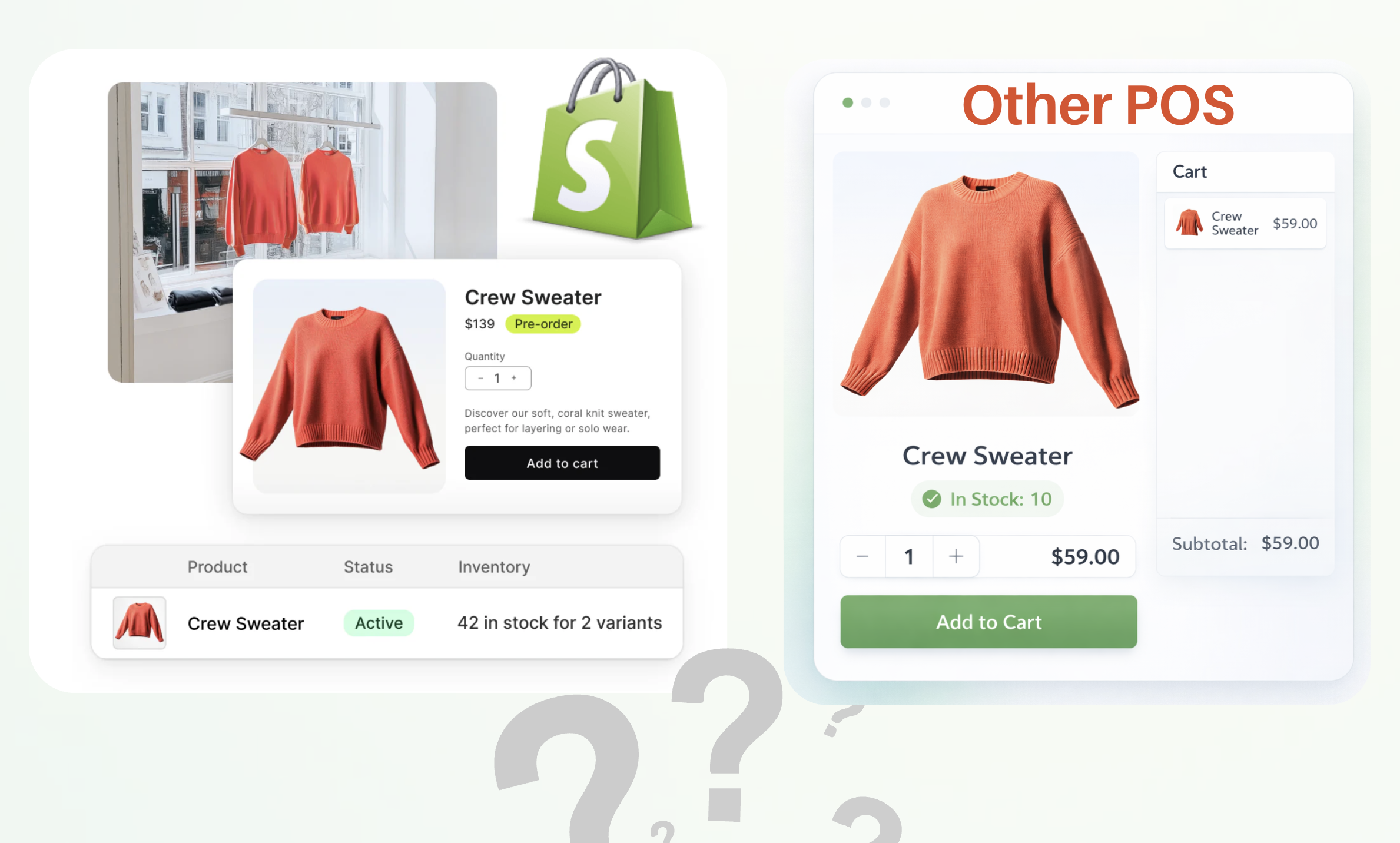
Before you blame the POS, rule out setup mistakes. Duplicate SKUs or a product linked to the wrong variant cause mismatches in any system. Here is how to find the cause of a stock mismatch.
Four signs it is time to switch
Someone fixes stock by hand every week. One hour a week is a real cost, even if no invoice shows it.
You opened a second branch and it doesn't fit. Your POS treats the whole business as one shop, so you can't see which branch has the item.
Online orders live in a different world. Staff check Shopify on one screen and the counter on another, and the same shirt gets sold twice.
Nobody supports the connection. The app that linked your POS to Shopify stopped getting updates, or your POS version is too old for it.
One sign can be a setup problem. Two or more usually mean the system itself is the limit.
What moving to iSmartSync looks like
iSmartSync is a POS built for Shopify stores. It runs in a web browser on a PC or laptop, with your barcode scanner and receipt printer.
Your products come from Shopify. Import them once, with variants, SKUs, barcodes and prices. Nothing is typed in again, so clean up your Shopify products first. Items you sell only in the shop can be added in iSmartSync without putting them on your website.
Count once, then sell. On switch day, close the shop, count each branch and make sure Shopify shows those numbers. Then move the stock into each branch in iSmartSync with a one-click transfer. From that moment, every counter sale updates Shopify straight away.
Online orders arrive at the counter. Staff pack them from the branch that has the stock, so walk-in and online sales stop fighting over the same item.
Old sales stay where they are. Past bills from your old POS are not imported. Export your old reports before you switch, and keep access to them.
Test small first. Try a sale, an online order and a return on a few products before the whole shop moves. Our checklist before connecting a POS to Shopify gives you the list to run.
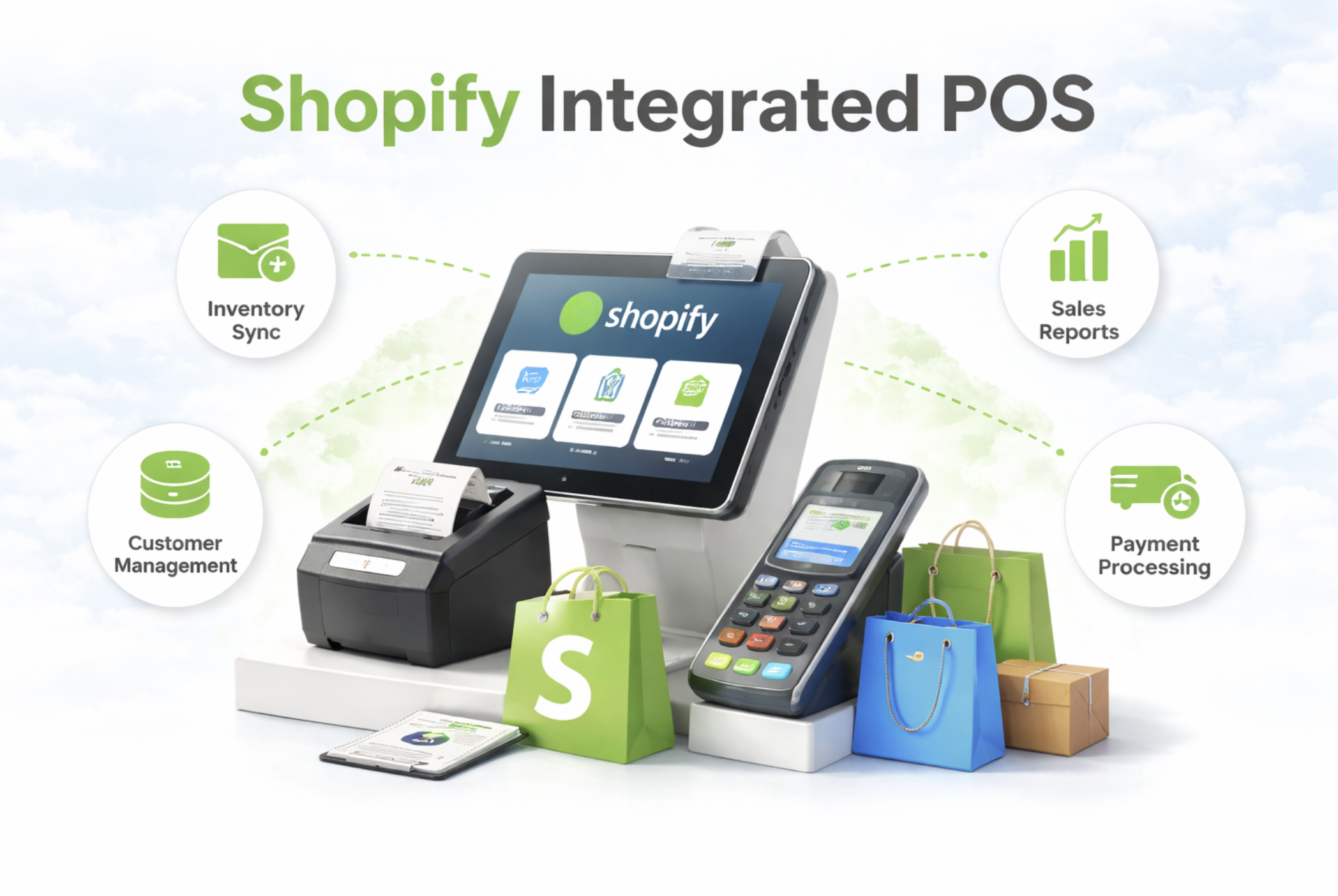
You can see how counter sales, branch stock and online orders work together on the Shopify integrated POS page.
Frequently asked questions
Will my current POS work with Shopify?
It might. Ask your POS company in writing whether your exact version connects to Shopify in your country. Then run the three checks above with one real product.
Do I lose my old sales history if I switch?
Your products move, because they come from Shopify. Old bills and reports stay in your old POS, so export them before you switch.
How long does switching take?
Most of the work is cleaning up products and counting stock. The switch itself is one evening: count, move stock into each branch, and open the till the next morning.
Do I need new hardware?
Usually not. iSmartSync runs in a web browser, so a working PC or laptop, barcode scanner and thermal receipt printer can often stay. Check your exact printer model with us first.
Not sure which side you are on?
Message us on WhatsApp with your POS name, how many branches you have and the one problem that bothers you most. We will tell you honestly whether to keep it, fix it or move.